PC check before using Claude: five steps to a clean environment
New computer, a computer that has switched accounts, or a team member's computer: before the first use of Claude, go through these five steps. Hold the three red lines, clear old traces, change the time zone, block the web version in your everyday browser, switch to an IP, and test each item.
Hold the three red lines first
- Don't open claude.ai in a regular browser. Always use the web version inside an anti-detect browser (see setting up a dedicated AdsPower profile for Claude). Never log in from your everyday browser.
- Only use a US home broadband IP, and don't switch to other nodes. Delete every other subscription from your proxy app, so that a slip of the finger that switches to a datacenter node can't leave a record in a single go.
- Don't use this line for large downloads. The residential IP is only for accessing Claude. Large downloads make the line look unlike a normal home user.
Step 1: Clear old Claude traces
If this computer has logged in to Claude before, or has had an account banned, first clear out the local leftovers: login state, tokens, caches and config files. The easiest way is to have another AI coding tool (such as Codex) do it for you. Copy this instruction directly:
Please clean up all Claude / Claude Code / Anthropic-related caches, login sessions, tokens, configuration and leftover local files on this computer. Do not delete my projects or personal files.
Step 2: Set the system time zone to US time
The time zone must match the IP's location. If the IP is on the US East Coast, choose "(UTC-05:00) Eastern Time (US & Canada)". On Mac, go to System Settings → General → Date & Time, turn off "Set time zone automatically", then manually choose New York.
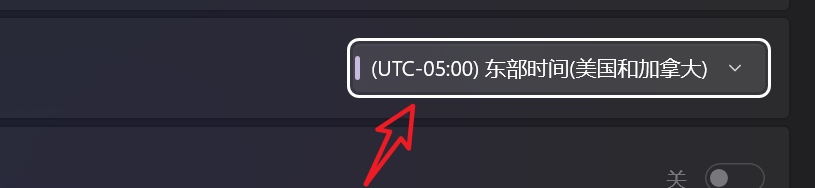
After the change, the clock in your computer's taskbar and your phone's alarms will change too. This is normal. Once you've changed it, don't change it back. A time zone that flips between the US and Beijing looks more suspicious than never changing it at all.
Step 3: Block claude.ai in your everyday browser with BlockSite
Relying on self-discipline for the first red line tends to fail. You search for something, click on claude.ai without thinking, and the real fingerprint of your everyday browser gets linked to the account. Install the BlockSite extension in Chrome / Edge, and add this URL to the blocklist:
https://claude.ai
This way your everyday browser can never open the Claude web version, and only the dedicated environment in the anti-detect browser can.
Step 4: Switch to a US home broadband IP and test each item
Keep only the US home broadband subscription in your proxy app, turn on TUN mode + Global, then open these three checking sites one by one:
Passing standard (ip.net.coffee/claude)
- The higher the trust score, the better. Aim for 90 or above. The IP attribute must be residential, not datacenter. A low score means the line itself is bad. Switch lines rather than forcing it.
- The three IPs in the first row must be identical. If they differ, some traffic isn't going through the proxy, and Claude may see your domestic IP from one of them.
- China must not appear in the DNS leak results. If it does, it's almost always because TUN or Global isn't on. Turn them on and test again.
What to look for on ping0.cc and ippure.com
Test WebRTC and DNS leaks separately
On the two pages below, the results must not show China. (It's fine if the STUN server column says China. What matters is whether the result says "No leak detected", and whether all DNS exits are in the US.)
- WebRTC leak: ippure.com/Browser-WebRTC-Leak-Detect
- DNS leak: ippure.com/DNS-Leak-Detect
What to do if a check fails
Once everything passes, log in and start using it at the pace described in First login must-reads.